
If you've ever forgotten to send a reminder text, dropped the ball on a new client welcome message, or wished someone else could handle the "your appointment is coming up" nudge — this one's for you.
We just launched Automated Events, a new feature in ScheduleOwl that lets you put your client and team communication on autopilot.
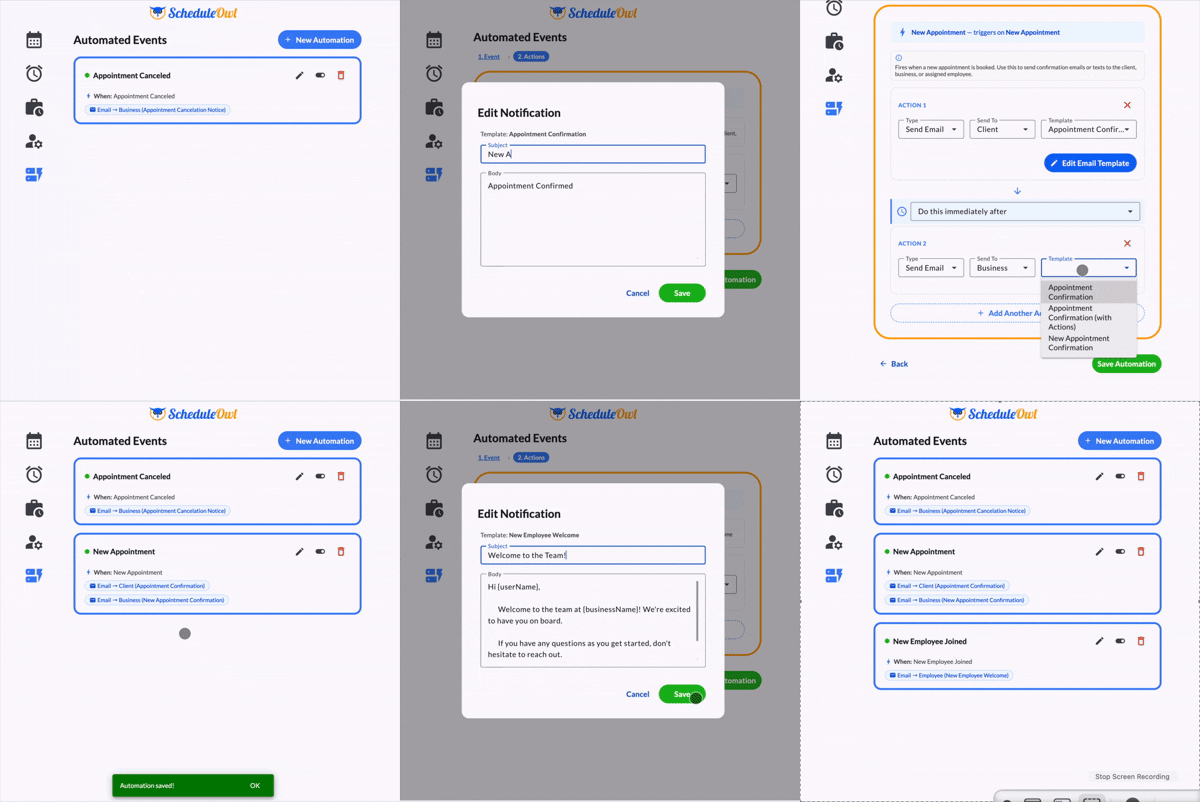
What Are Automated Events?
Automated Events are actions — texts or emails — that fire automatically when something happens in your business. You define the trigger, write the message once, and ScheduleOwl handles the rest.
No more copy-pasting the same "thanks for booking" message. No more manually texting reminders the day before. It just happens.
Available Triggers
You can set automations to fire on any of these events:
- New Appointment — A booking was just created
- New Client — Someone is added to your client list for the first time
- New Employee — A new team member is added to your account
- Appointment Upcoming — An appointment is approaching (great for reminders)
- Appointment Canceled — A booking was canceled
Available Actions
Each event can trigger:
- Send a Text (SMS) — Direct to the client or employee's phone
- Send an Email — Polished, on-brand, right to their inbox
Custom Templates with Custom Variables
Here's where it gets powerful: every message you write supports custom templates with dynamic variables.
That means instead of a generic "Your appointment is confirmed," you can send:
Hi [Client Name], your [Service Name] appointment with [Employee Name] is confirmed for [Date] at [Time]. See you then!
You define the template once. ScheduleOwl fills in the real details every time it runs. This makes every automated message feel personal — even though you never had to lift a finger.
Real Examples of What You Can Set Up
Here are a few automations service businesses are already using:
- Welcome new clients with a friendly intro text the moment they're added
- Confirm bookings instantly with an email that includes the appointment details
- Remind clients the day before so they actually show up
- Alert your team when a new employee is onboarded
- Follow up on cancellations with a re-booking nudge
How to Set It Up
Automated Events live right inside your ScheduleOwl dashboard. Head to the Automations section, choose a trigger, pick your action (text or email), write your template, and save. That's it.
You can create multiple automations for the same trigger if needed — for example, send both an email confirmation and a text reminder for new appointments.
Why This Matters for Your Business
Manual follow-ups take time you don't have. And when you're slammed with work, communication is usually the first thing that slips — which leads to no-shows, confused clients, and a less professional impression.
Automated Events solve that without adding to your plate. Your business keeps communicating consistently whether you're on a job, taking a day off, or just heads-down in the work.
It's the kind of thing that used to require a dedicated admin or a complicated third-party tool. Now it's built right into ScheduleOwl.
Get Started Today
Automated Events are available now for all ScheduleOwl users. Log in and explore the Automations section to start building your first workflow.
If you're not on ScheduleOwl yet, sign up free and see how much time you can get back.